A customer at work has several Azure Virtual Machines and they wanted to have them stopped between the hours of say 10pm until 6am, nothing too difficult there. I setup an Azure Automation account with a Start/Stop VM Solution, long story short it doesn’t really work, like at all, its messy etc, it’s just a mess.
**Note - the solution presented below means zero resource provisioning! **
I decided to look at a different way of doing it and asked around and a colleague Nathanat work suggested Azure Functions and also mentioned he had been looking at the** Azure CLI** of late.
The below is the solution that he came up with, I like this and decided to go ahead and pinch his idea, don’t worry he works in my team and I will give credit where credit is very much due :) - now before I go any further, yes I could use PowerShell, Azure Functions, etc. etc. but I like this implementation mainly because I learned a couple of new things, and if I’m learning then all good.
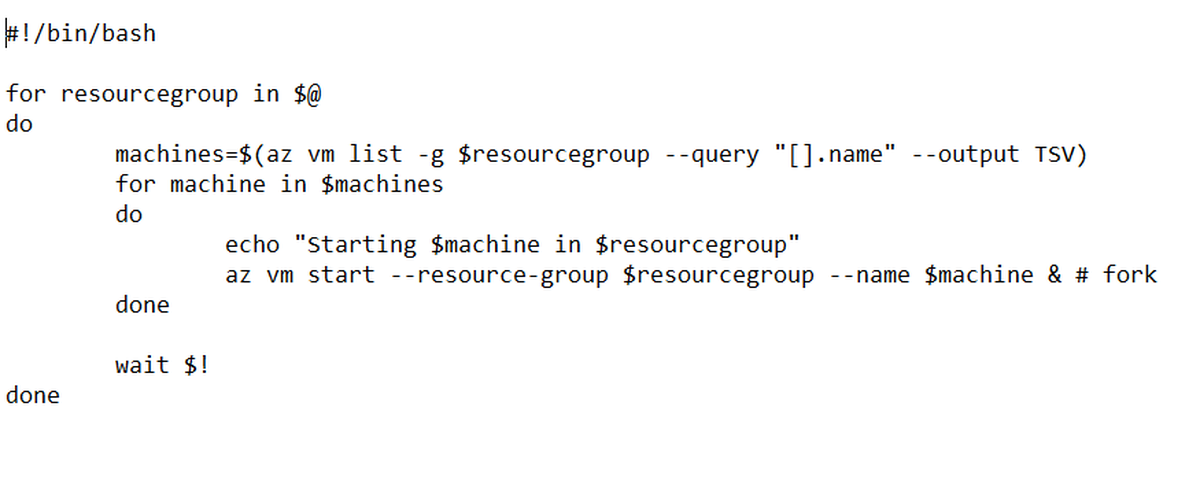
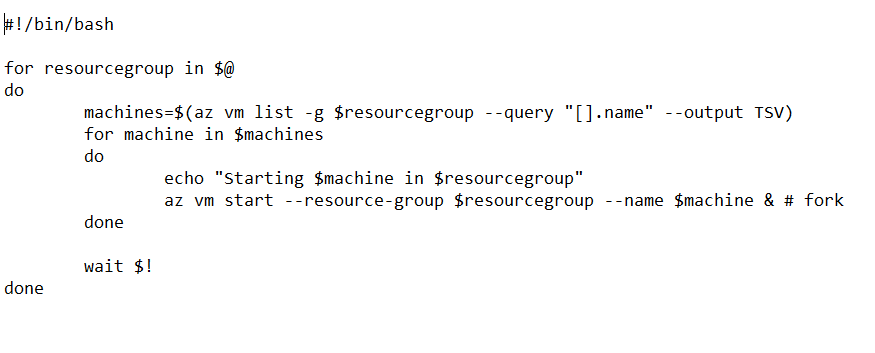
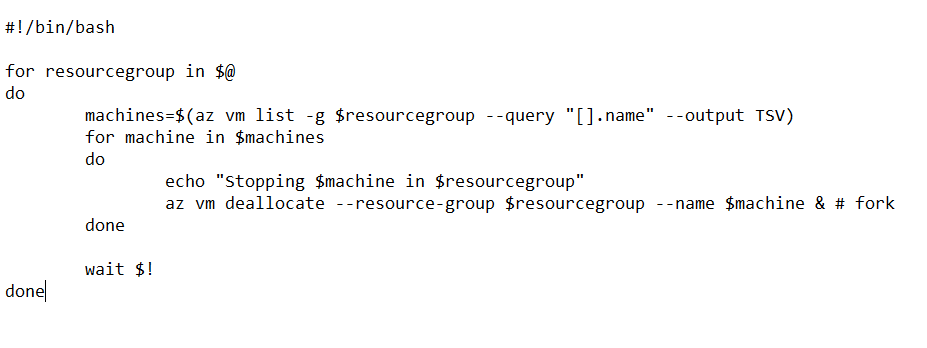
He wrote 2 bash scripts which invoke the** Azure CLI**, you pass in the name of the Resource Group(s) and it’ll loops through and starts / stops all the VM’s in your Resource Group(s).
Start VM Bash Script:-
Stop VM Bash Script:-
Start VM Yaml Build Script: -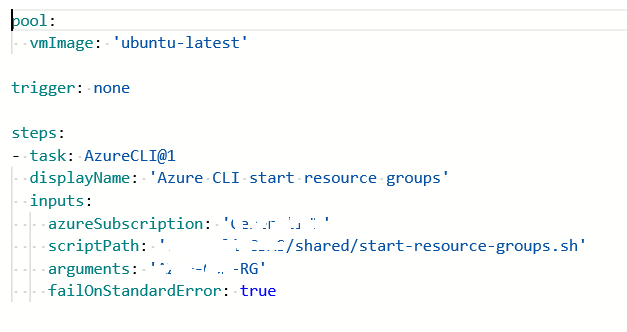
Stop VM Yaml Build Script: -
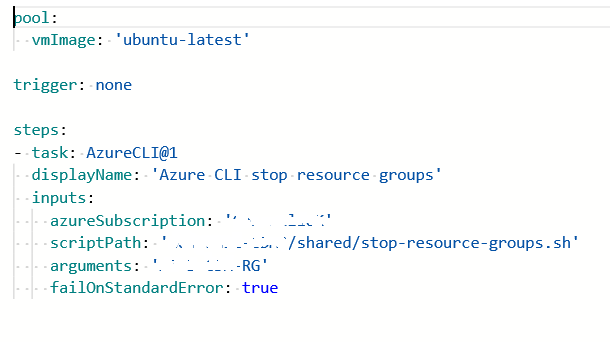
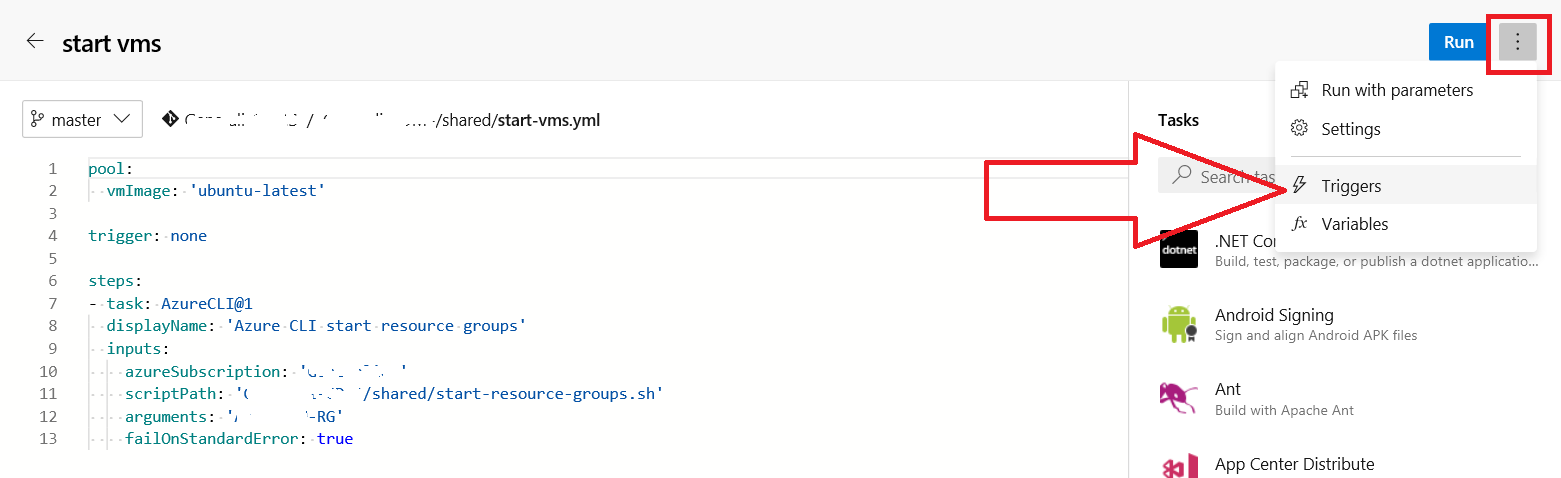
Then to ensure the bash scripts run every day you set the schedule for the build and your good to go, like so:-
Feedback welcome, I like this idea for the following reasons: -
- Learned some YAML
- Learned about trigger (think scheduled builds) on YAML builds
- And looked more at the Azure CLI which is of huge interest
Please also follow Nathan on twitter.