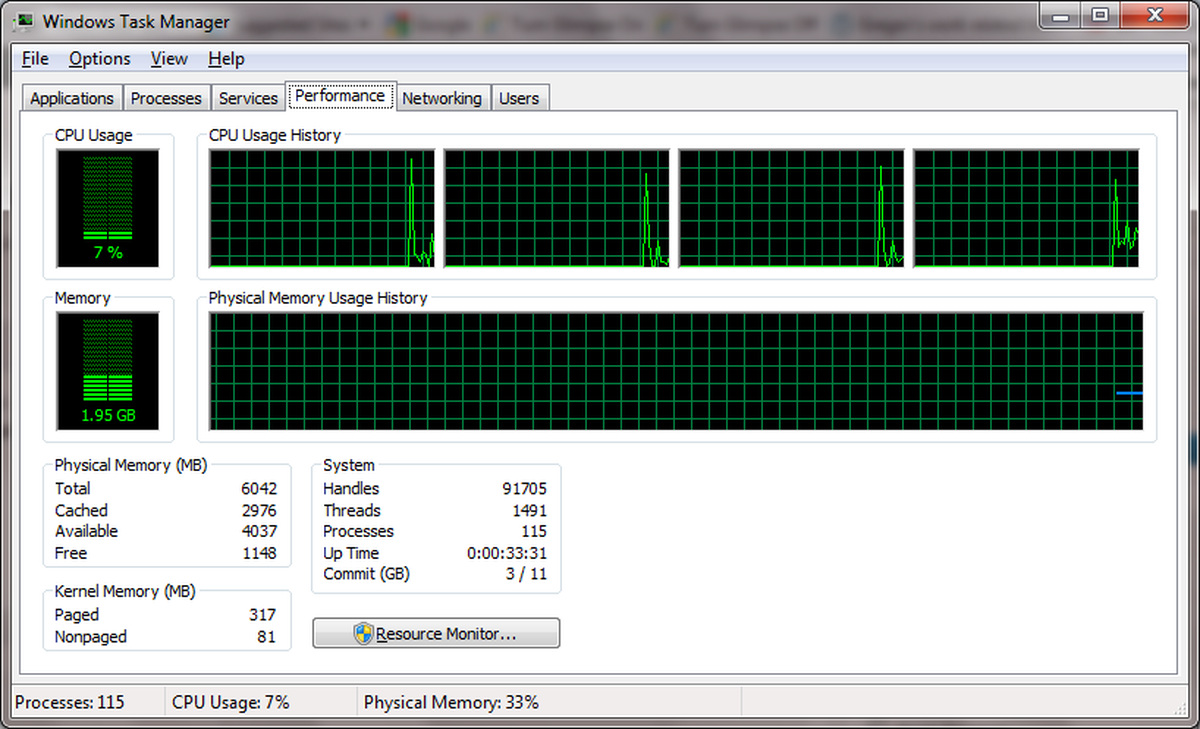
Recently a friend was complaining that her laptop was running really slowly and I asked her to check the memory within task manager - like in the screen shot of my pc below:-

The problem in her case was that her laptop was using 66% of the total memory available even when it was idle, I mentioned that she sound check how much memory her laptop had and to perhaps get more memory if required - she wasnt sure how to do this so here is a step by step guide to checking what memory your pc had and what it can take:-
- Go to the Crucial website and look for the System Scanner, download this and then run it, it will scan your pc and give you a whole heap of great info on your pc/laptop memory including how many slots and what chips you currently have.

- The following video explains how to use the system scanner [youtube http://www.youtube.com/watch?v=jG96c5xRdfc&rel=0&hl=en_US&feature=player_embedded&version=3]
Note:- The tool even shows you compatible Solid State Drives (SSD) for your pc.
I highly recommend even trying the scanner to see just how much memory your pc has and what it can go up to, more memory can make a huge difference.